


How To Configure Blogger Tabs Widget
This tutorial is configuring for the tabs widget you can see on sidebars of many of my blogger themes. There are 2 or 3 tabs in the tab widget according to the theme you are using. There is no hard thing to do, when you upload a theme, just go to "Layout" page and add correct widget for each tab like this:
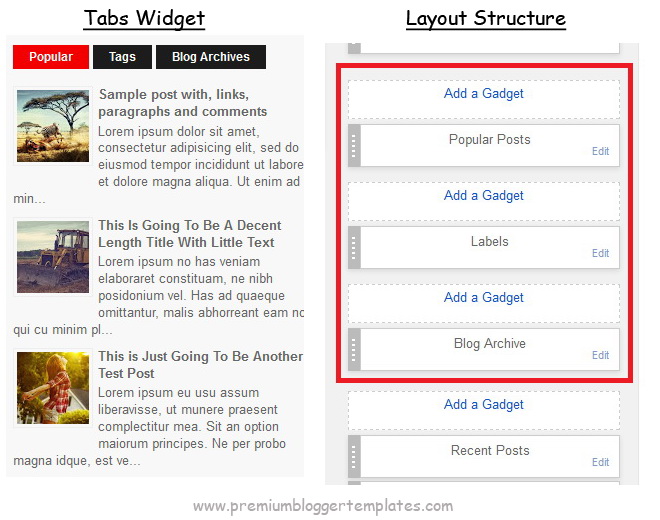
First tab is for "Popular Posts" widget.
Second tab is for "Labels" widget.
Third tab is for "Blog Archive" widget.
But if you need to change tab names ("Popular", "Tags", "Blog Archives") of the tabs widget, need to go to "Edit HTML" page for this:
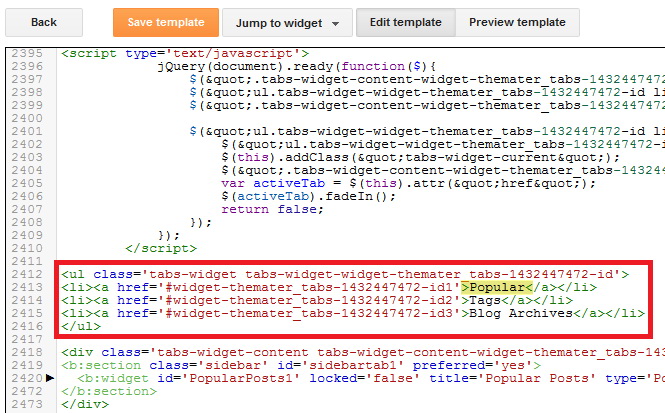
All you have to do is changing the names "Popular", "Tags" and "Blog Archives" as you like. After that save your theme.
First tab is for "Popular Posts" widget.
Second tab is for "Labels" widget.
Third tab is for "Blog Archive" widget.
But if you need to change tab names ("Popular", "Tags", "Blog Archives") of the tabs widget, need to go to "Edit HTML" page for this:
https://www.blogger.com/blogger.g?blogID=YOUR_BLOG_ID#templatehtmlNow find the code in your template more similar to below code:
<ul class='tabs-widget tabs-widget-widget-themater_tabs-1432447472-id'>
<li><a href='#widget-themater_tabs-1432447472-id1'>Popular</a></li>
<li><a href='#widget-themater_tabs-1432447472-id2'>Tags</a></li>
<li><a href='#widget-themater_tabs-1432447472-id3'>Blog Archives</a></li>
</ul>
It will look like this:
All you have to do is changing the names "Popular", "Tags" and "Blog Archives" as you like. After that save your theme.
0 comments:
Post a Comment